Fog of war and walls: setting up exploration
The thrill of exploration comes down to one thing: not knowing what's behind the door. On a virtual tabletop, that's the job of the fog of war: players only see what their characters have discovered. This guide covers the two ways to do it on Mystria, from the simplest to the most immersive.
Two approaches
- Manual fog: the GM reveals areas themselves as the party explores. Quick to set up, perfect for a first game.
- Line of sight: you draw the walls, and each player only sees what's in front of their token. Longer to prepare, but the effect is striking: you truly discover the dungeon as you advance.
You can start with the first and move on to the second once you're comfortable.
Manual fog
Prepare
Upload your map in the session's Maps tab and turn on the fog: the whole map is covered for players. You, as the GM, can still see everything.
Reveal during play
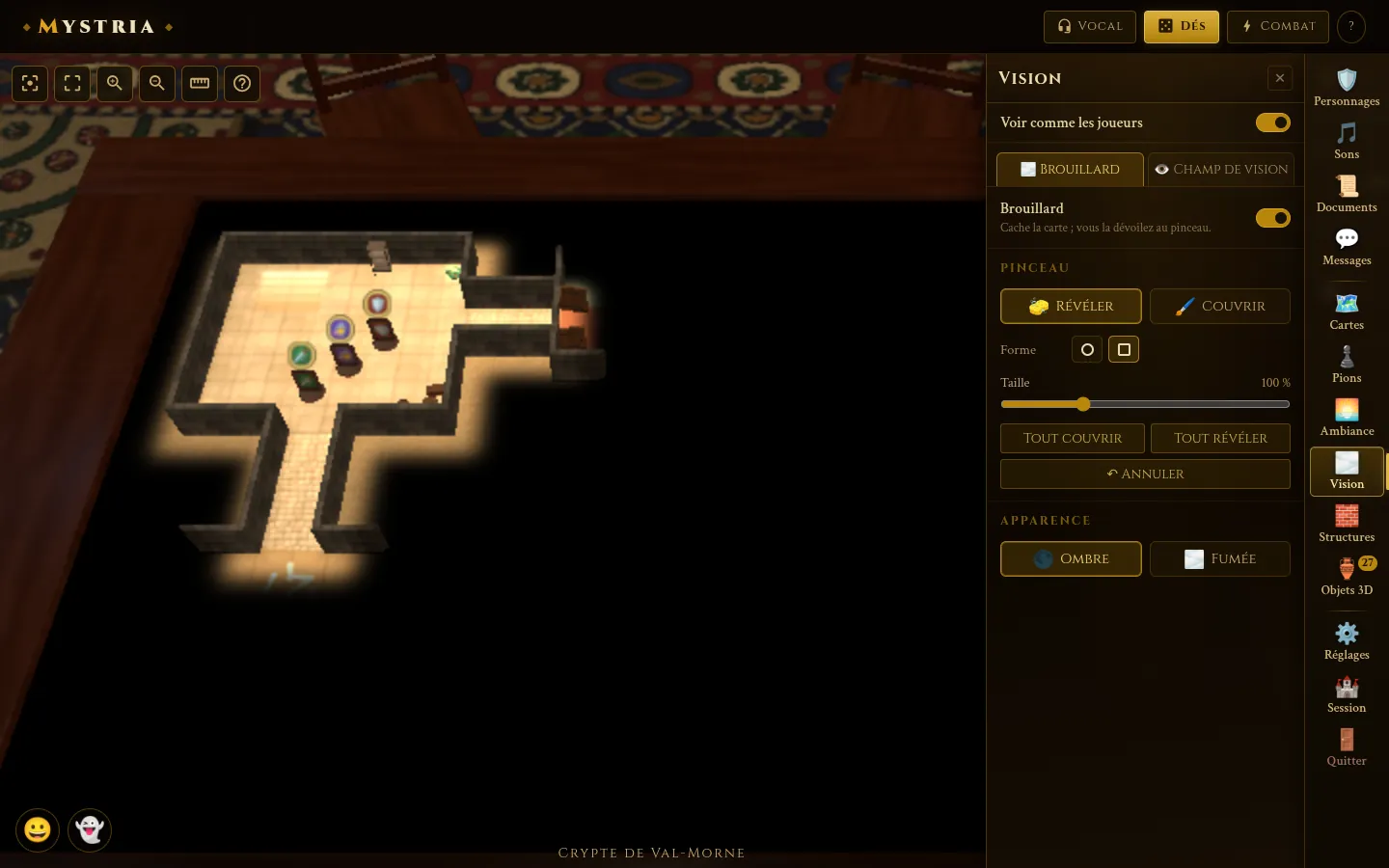
In the Vision panel, Fog tab:
- Choose Reveal (or Cover to hide an area again).
- Choose the shape: round brush to follow a corridor, rectangle to reveal a room in one stroke.
- Paint on the map. Players see the area appear.
"Reveal all" and "Cover all" apply to the whole map. You can also adjust how the fog looks: Shadow for solid black, Smoke for a more mysterious haze.
Line of sight
Draw the walls
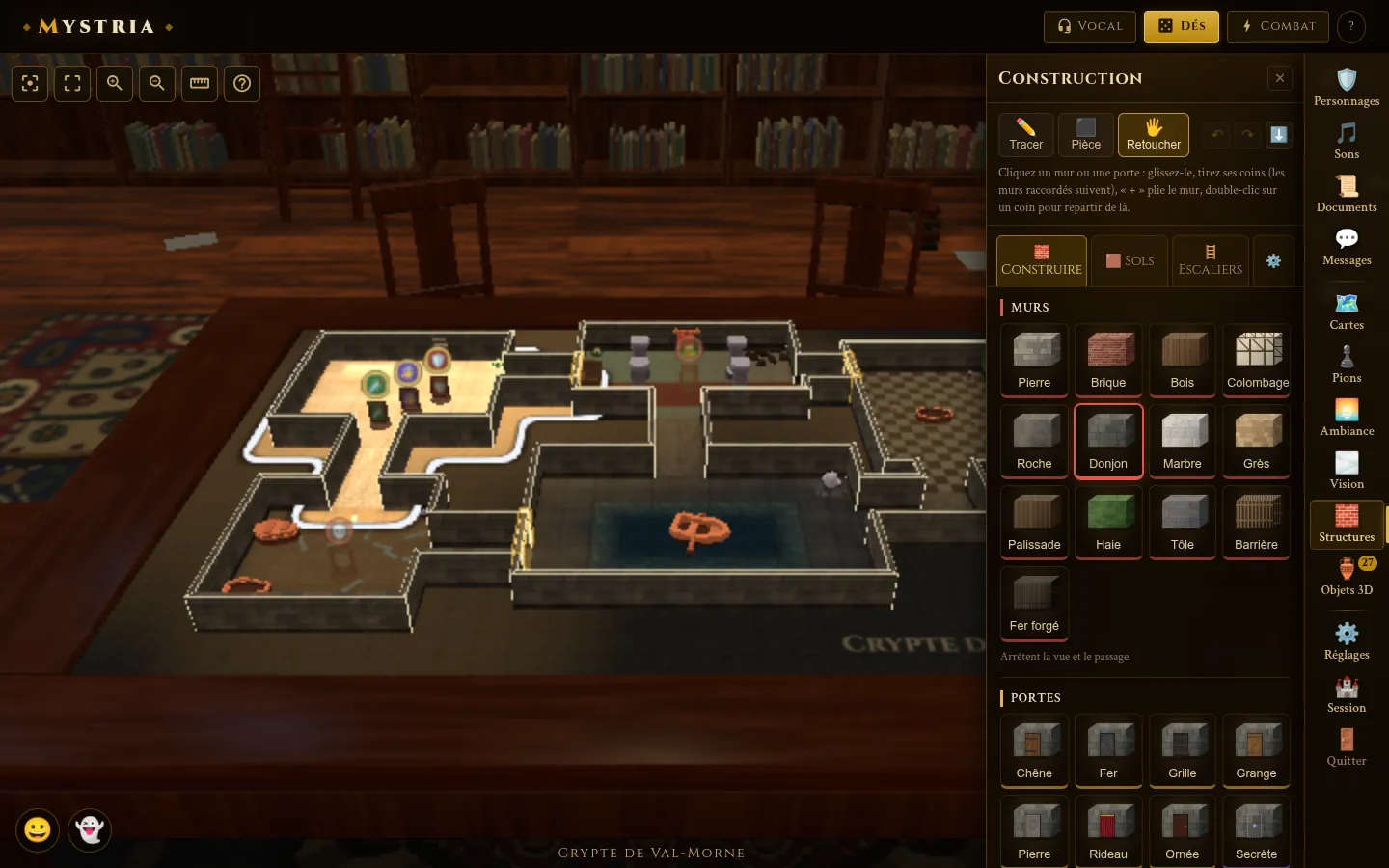
The Structures button opens the building panel, on the Build tab. Choose what you're placing:
- Wall: blocks sight and movement.
- Door: opens with a click. A player can only open a door if their token is next to it; you can open any of them.
- Secret door: looks just like a wall to players. Only you see its door leaf and can open it; the "Reveal" button turns it into a regular door once it's discovered.
- Low wall: blocks movement but lets you see over it.
- Window: lets you see through it, but not pass.
Three drawing modes: Draw to trace a wall point by point, Room to draw an entire room at once, Edit to move a corner or adjust a door. Walls can snap to the grid, which makes drawing fast on a gridded map.
Set up vision
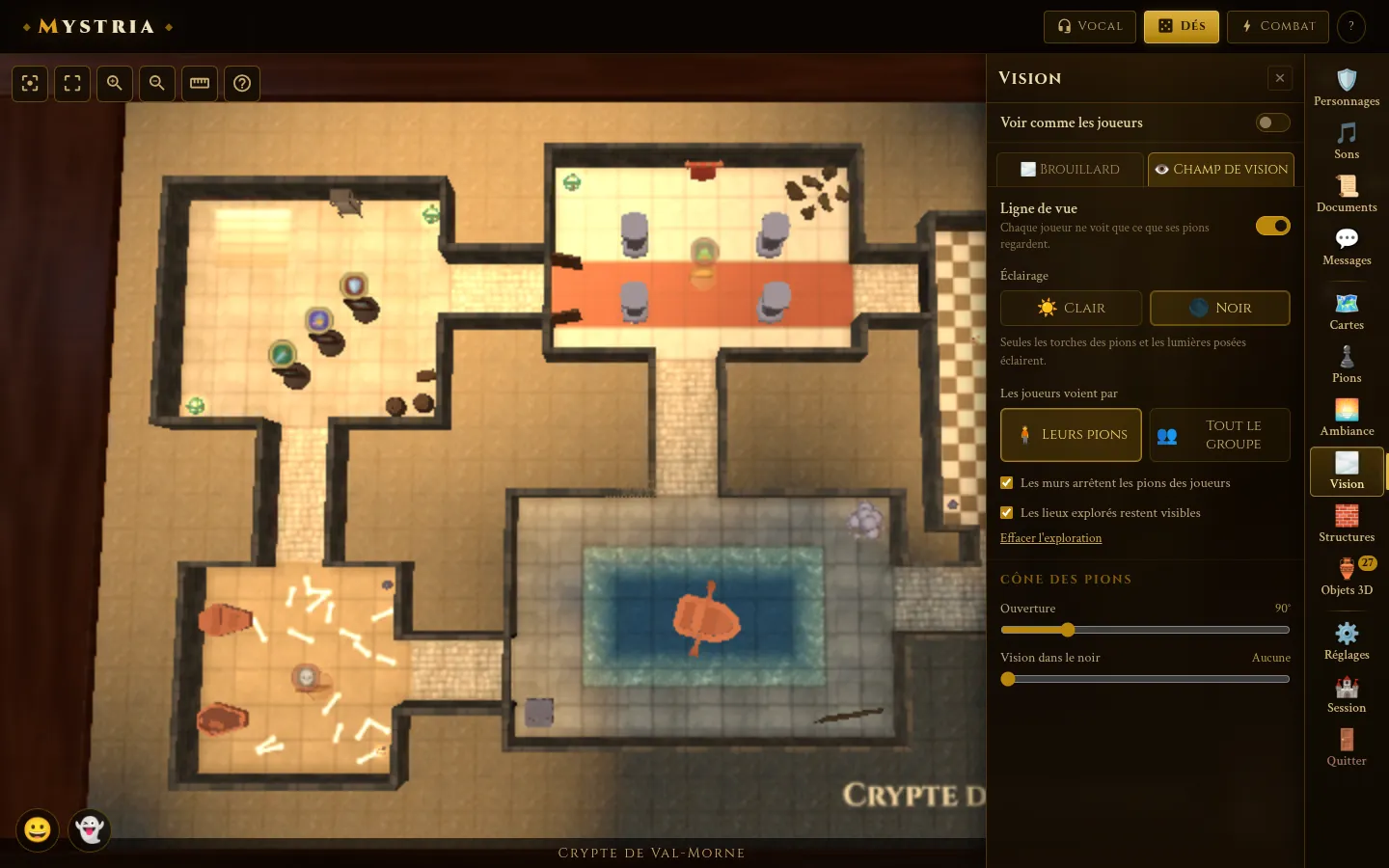
In the Vision panel, Field of view tab:
- Turn on Line of sight: each player only sees what their tokens are looking at.
- Lighting: Bright for a lit location, Dark for a dungeon where you can only see within range.
- Players see through their tokens (each has their own vision) or the whole party (vision is shared).
- Explored areas stay visible: rooms already crossed remain displayed, like a map you draw as you go.
- Walls block player tokens: you can't move your token through a wall.
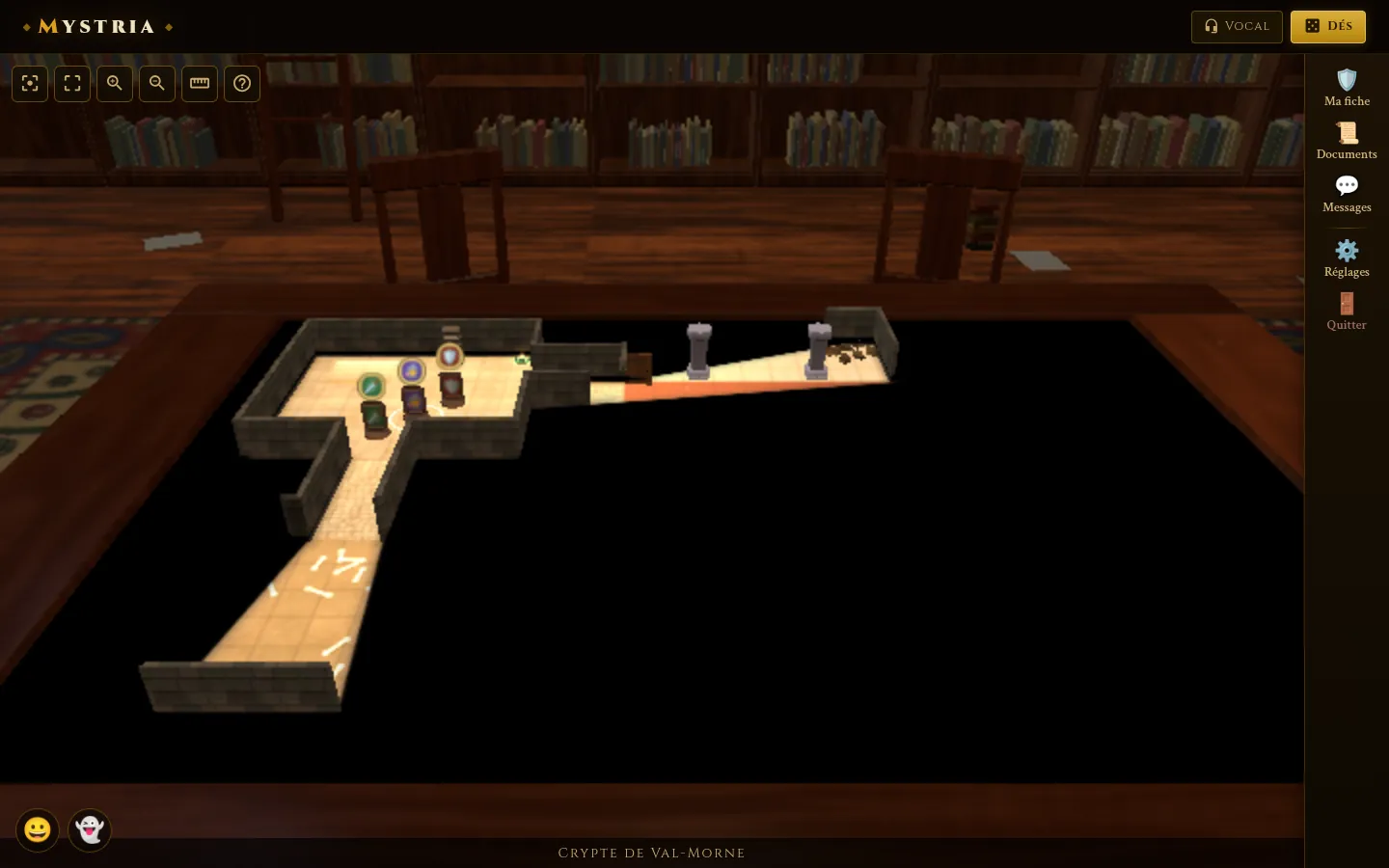
The best part: on the 3D board, the walls actually rise up around the tokens, and an opening door reveals the next room.
Multiple floors
A tower, a crypt beneath the chapel, a ship with several decks? A map can have several floors, each with its own image, walls and fog. Stairs connect the floors: a token placed on the steps changes floor. You choose whether each player sees their token's floor or the whole table follows yours.
A 20-minute prep method
- Upload the map and adjust the grid (one map square = one grid square).
- Draw the outer walls with Room mode, then the partitions with Draw.
- Place the doors, plus a secret door for a surprise.
- Turn on line of sight, choose the lighting, check "Explored areas stay visible".
- Place the monster tokens in the rooms: as long as no player can see them, they stay hidden.
- Check with "View as players" from the dungeon entrance.
If you're short on time, stick with manual fog: one rectangle per discovered room, and the session is ready.
Frequently asked questions
Can players see tokens hidden in the fog?
No. A token located in an area the player can't see isn't shown to them. Pings, however, stay visible even in the fog, so a player can always point something out.
Can you combine manual fog and line of sight?
Yes. You can reveal an area by hand (a room lit by a window, a memory) while letting line of sight handle the rest.
Do you need a paid plan?
No. Fog, walls, line of sight and floors are all available from the free plan. Paid plans mainly add more tables, players and storage space. See pricing.